
Image Compression Has Changed in 2026
Two years ago, "compress JPEG online" meant one thing: shrink a photo so it loads faster on your website. Simple enough.
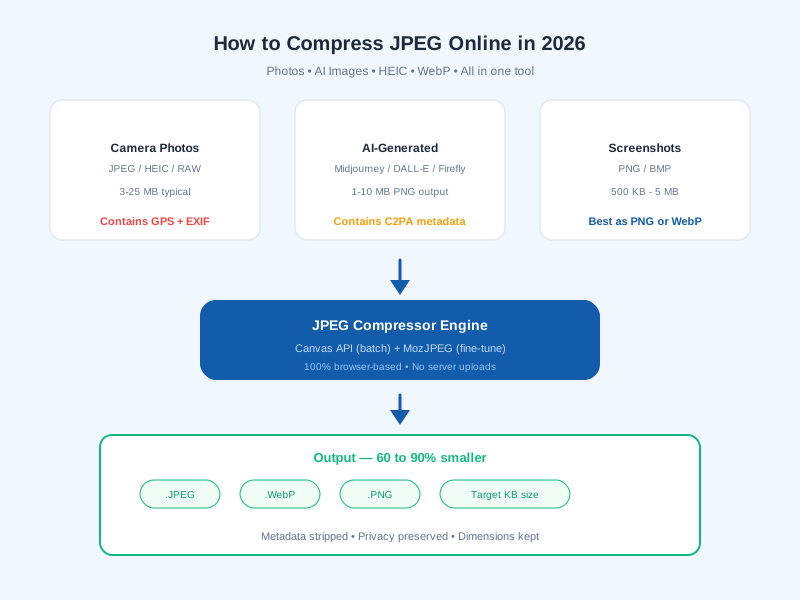
In 2026, the picture is more complicated. You are dealing with traditional camera photos, AI-generated images from Midjourney and DALL-E that carry invisible metadata, iPhone HEIC files that need converting, and next-gen formats like WebP and AVIF that did not exist in mainstream use five years ago.
At jpegcompressor.com we built a tool to handle all of this in one place. But regardless of which tool you use, understanding what is happening inside your image files helps you make better compression decisions. Let me walk you through the full landscape.
Traditional Photos: What You Already Know
When you take a photo with your phone or camera, it saves as JPEG. The file is typically 3 to 8 MB for a smartphone shot and 10 to 25 MB for a DSLR RAW-to-JPEG export.
JPEG compression works by splitting the image into tiny 8x8 pixel blocks, converting colors from RGB to brightness plus color channels (YCbCr), then applying a mathematical transform called DCT. This transform identifies visual detail that the human eye barely notices — subtle color shifts, fine noise, high-frequency texture — and discards it.
The quality slider (1 to 100) controls how aggressively this detail gets removed:
- Quality 95-100: Almost no data removed. File barely shrinks. Overkill for web.
- Quality 80-85: The sweet spot. Files drop 60-80% with zero visible difference.
- Quality 60-75: Noticeable softness at 200% zoom. Fine for thumbnails and social media.
- Quality below 50: Visible blockiness. Only for extreme file size requirements.
My Real Test Numbers
I took a portrait photo (4.2 MB, 4000x6000px, Canon R6) and compressed it at different levels:
| Quality | File Size | Reduction | Visual Quality |
|---|---|---|---|
| 100 | 3.8 MB | 10% | Identical |
| 85 | 780 KB | 81% | Identical to eye |
| 75 | 420 KB | 90% | Slight softness at 200% zoom |
| 50 | 180 KB | 96% | Noticeable degradation |
For most web use, quality 80 with MozJPEG encoding gives you the best trade-off. That is exactly what jpegcompressor.com defaults to.
AI-Generated Images: A New Category
Here is something most people miss. When you generate an image with DALL-E 3, Midjourney, Adobe Firefly, or Stable Diffusion, the output is a standard JPEG or PNG file. There is no special "AI format."
But there IS something different hiding inside: C2PA Content Credentials.
What Are Content Credentials?
Modern AI platforms embed invisible cryptographic metadata in every image they generate. This metadata block contains:
- The AI model used (DALL-E 3, Firefly, etc.)
- The generation date and parameters
- A tamper-evident signature that proves the image was AI-made
When you upload these images to platforms like LinkedIn, X (formerly Twitter), or Instagram, they read this metadata and automatically tag your post with a "Made with AI" label.
Should You Strip AI Metadata Before Compressing?
It depends on your use case:
- Social media posts: Keep the metadata. Platforms are increasingly penalizing posts that strip AI labels — it looks deceptive.
- Website graphics: Strip it. The metadata adds 5-20 KB per image and serves no purpose for web performance.
- Commercial use: Check your license terms. Some AI platforms require you to keep Content Credentials intact.
When you compress JPEG online using jpegcompressor.com, metadata is stripped by default during compression. This removes GPS data, camera settings, AND AI Content Credentials — giving you a clean, minimal file. If you need to keep metadata, there is an option to preserve it.
Compressing Different Image Types
Not all images compress equally. Here is how different source types behave:
Smartphone Photos (iPhone, Samsung, Pixel)
Modern phones save in HEIC format by default (not JPEG). Before you can compress JPEG online, you need to convert HEIC to JPEG first. On jpegcompressor.com, this conversion happens automatically — just drag in your HEIC files and they get converted and compressed in one step.
Typical results for phone photos:
- iPhone 15 Pro photo: 4.8 MB HEIC → 380 KB JPEG at quality 80
- Samsung Galaxy S24: 3.2 MB JPEG → 290 KB at quality 80
- Google Pixel 8: 5.1 MB JPEG → 410 KB at quality 80
AI-Generated Images
AI images tend to compress well because they often have smoother gradients and less high-frequency noise than real photographs:
- Midjourney output (2048x2048 PNG, 8.5 MB) → 320 KB JPEG at quality 80
- DALL-E 3 output (1024x1024 PNG, 2.1 MB) → 95 KB JPEG at quality 80
- Stable Diffusion (512x512 PNG, 800 KB) → 45 KB JPEG at quality 80
Screenshots and Text-Heavy Images
Screenshots with text compress terribly as JPEG. The sharp edges of letters create blocking artifacts. For these, either:
- Use PNG (lossless, preserves text clarity)
- Convert to WebP (handles text edges better than JPEG)
- If you must use JPEG, keep quality above 90
The 2026 Format Landscape
JPEG is not the only game in town anymore. Here is where each format stands right now:
| Format | Extension | Best For | Status in 2026 |
|---|---|---|---|
| JPEG | .jpg | Photos for universal compatibility | Standard everywhere |
| PNG | .png | Screenshots, logos, transparency | Standard everywhere |
| WebP | .webp | Web images (25-34% smaller than JPEG) | 97% browser support |
| AVIF | .avif | Next-gen photos (30-50% smaller than WebP) | 92% browser support |
| HEIC | .heic | iPhone photos (Apple's default) | Not web-compatible |
| JPEG XL | .jxl | Photography (lossless JPEG upgrade) | Behind experimental flags only |
My Practical Recommendation
For most people who need to compress JPEG online, here is the workflow:
- Source file is HEIC → Convert to JPEG or WebP, compress, done
- Source file is JPEG → Compress at quality 75-85, optionally export as WebP
- Source file is PNG → Convert to JPEG (photos) or keep as PNG (screenshots)
- Destination is web → Use WebP for 30% smaller files
- Destination is email/social → Stick with JPEG for universal compatibility
On jpegcompressor.com/image-converter, you can convert between all these formats in your browser — no upload to any server.
How MozJPEG Makes a Difference
Most online JPEG compressors use the standard libjpeg encoder that ships with every operating system. It is fast and reliable but leaves compression performance on the table.
MozJPEG was developed by Mozilla specifically to produce smaller JPEG files at any given quality level. It achieves this through:
- Optimized Huffman coding — more efficient binary representation of image data
- Trellis quantization — smarter decisions about which detail to discard
- Progressive encoding — images render top-to-bottom as they download
The result: 10 to 20 percent smaller files compared to standard libjpeg at the same visual quality. Applied across a full website with dozens of images, that adds up to significant bandwidth savings.
On jpegcompressor.com, you get a two-stage workflow:
- Fast batch compression using the Canvas API (instant results)
- Fine-tuning with MozJPEG using the live preview panel (maximum compression)
No other free tool combines both approaches.
Step-by-Step: Compress JPEG Online
Here is exactly how to compress JPEG files using our tool:
Step 1: Upload Your Images
Drag and drop files onto jpegcompressor.com. Supports JPEG, PNG, WebP, HEIC, and GIF. No file size limits, no daily caps.
Step 2: Choose Your Quality Setting
Pick a preset — High (quality 85), Medium (quality 70), or Low (quality 50). Or set a specific target file size in KB if you need exact control.
Step 3: Compress
Click compress. Your entire batch processes in seconds, directly in your browser. Nothing uploads to any server.
Step 4: Fine-Tune (Optional)
Open any image in the comparison panel. Drag the quality slider while watching the before-and-after in real time. When you hit Apply, MozJPEG re-encodes for maximum compression.
Step 5: Download
Download individual files or grab everything as a ZIP.
Privacy and Security
Every image you compress stays on your device. The compression runs inside your browser using Web Workers and WebAssembly. We cannot see your files. We do not store them. The tool works offline after the page loads.
This matters especially for:
- Medical images — HIPAA compliance requires local processing
- Legal documents — confidential materials should never leave your machine
- Personal photos — GPS metadata in uploaded images can reveal your location
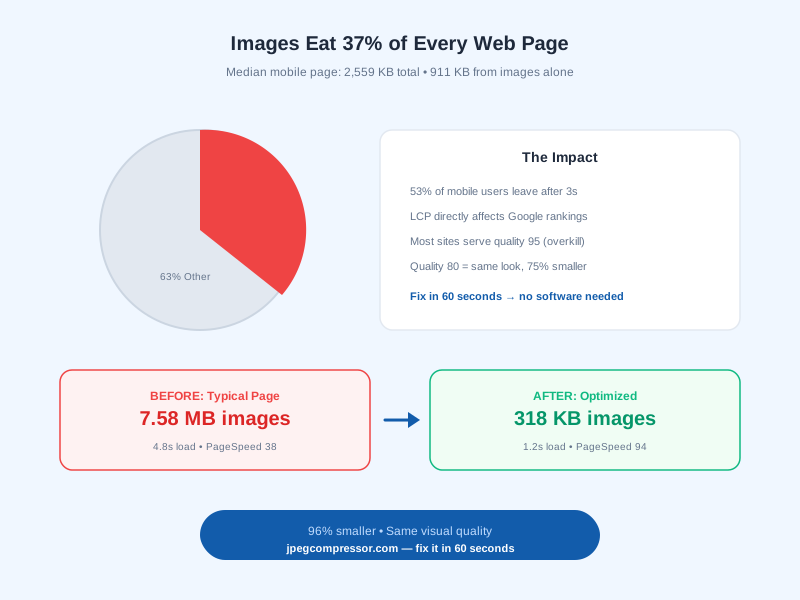
Google confirms that page speed directly affects search rankings through Core Web Vitals. Compressing your images is one of the fastest ways to improve your Largest Contentful Paint (LCP) score.
Common Mistakes When Compressing JPEG Online
1. Compressing an Already-Compressed JPEG
Re-compressing a JPEG that was already saved at quality 75 just adds more quality loss without significant size reduction. Always compress from the highest-quality source available.
2. Using JPEG for Screenshots
Screenshots with text and sharp UI elements look terrible in JPEG. The 8x8 block structure creates visible halos around text. Use PNG or WebP instead.
3. Ignoring Image Dimensions
A 4000px wide image compressed to quality 50 looks worse AND is larger than the same image resized to 1400px at quality 85. Resize first, compress second.
4. Not Checking the Result
Always zoom in and check your compressed output before publishing. What looks fine at thumbnail size might have visible artifacts when someone clicks to enlarge.
Frequently Asked Questions
Is it safe to compress JPEG files online?
Tools that process locally in your browser (like jpegcompressor.com) never upload your files. Server-based tools like TinyJPG upload your images to their servers for processing — fine for non-sensitive content, but avoid for private photos.
How much can I compress JPEG without losing quality?
At quality 80-85, you can typically reduce file size by 70-85% with no visible quality loss at normal viewing size. The exact amount depends on image content.
Can I compress JPEG to a specific file size?
Yes. On jpegcompressor.com, you can set a target in KB (like "under 200 KB") and the tool uses binary search to find the exact quality level that hits your target.
Do AI-generated images compress differently than photos?
AI images often compress better because they have smoother gradients. A 2048x2048 Midjourney PNG (8.5 MB) typically compresses to under 350 KB as JPEG at quality 80.
Should I use WebP instead of JPEG in 2026?
For web delivery, yes. WebP is 25-34% smaller at the same quality. But keep JPEG for email, social sharing, and any context where universal compatibility matters. You can convert JPEG to WebP free on our site.
What is the difference between lossy and lossless JPEG compression?
Lossy removes visual detail (quality slider from 1-100, achieves 60-90% reduction). Lossless only strips metadata and optimizes file structure (achieves 5-15% reduction). For meaningful size savings, lossy is the practical choice.
![10 Best Tools to Compress JPEG Online Free in 2026 [Tested]](/blog-images/best-jpeg-compressors.svg)
![How to Reduce Image Size Without Losing Quality [2026 Guide]](/blog-images/reduce-image-size.svg)